
Start Here / Step 3: Build Your Ads
Seller Creative Guide
Produce two clear creative assets and a simple test plan.
Customize before using
Replace the fields used in your selected template. Use [AGENT NAME], [BROKERAGE], [CITY], [COUNTY] or [NEIGHBORHOOD], [SELLER OFFER], verified [LOCAL MARKET DATA], [BOOKING LINK], [PHONE] and [EMAIL] consistently. Complete any additional bracketed delivery, privacy, property or review fields that apply. Delete instructions and unused alternatives before sending.
Editable assets included
Open the three SVG templates linked in the Seller Creative Guide in the Resource Hub. Edit the text with a vector editor or rebuild from the specifications in Canva. They use editable text and geometric layouts; the placeholder text must be replaced before export. They are working design files, not preapproved Meta ads. Use your agent and brokerage identity for homeowner ads. Lead Coasters branding belongs on the kit, not in place of the licensed agent.
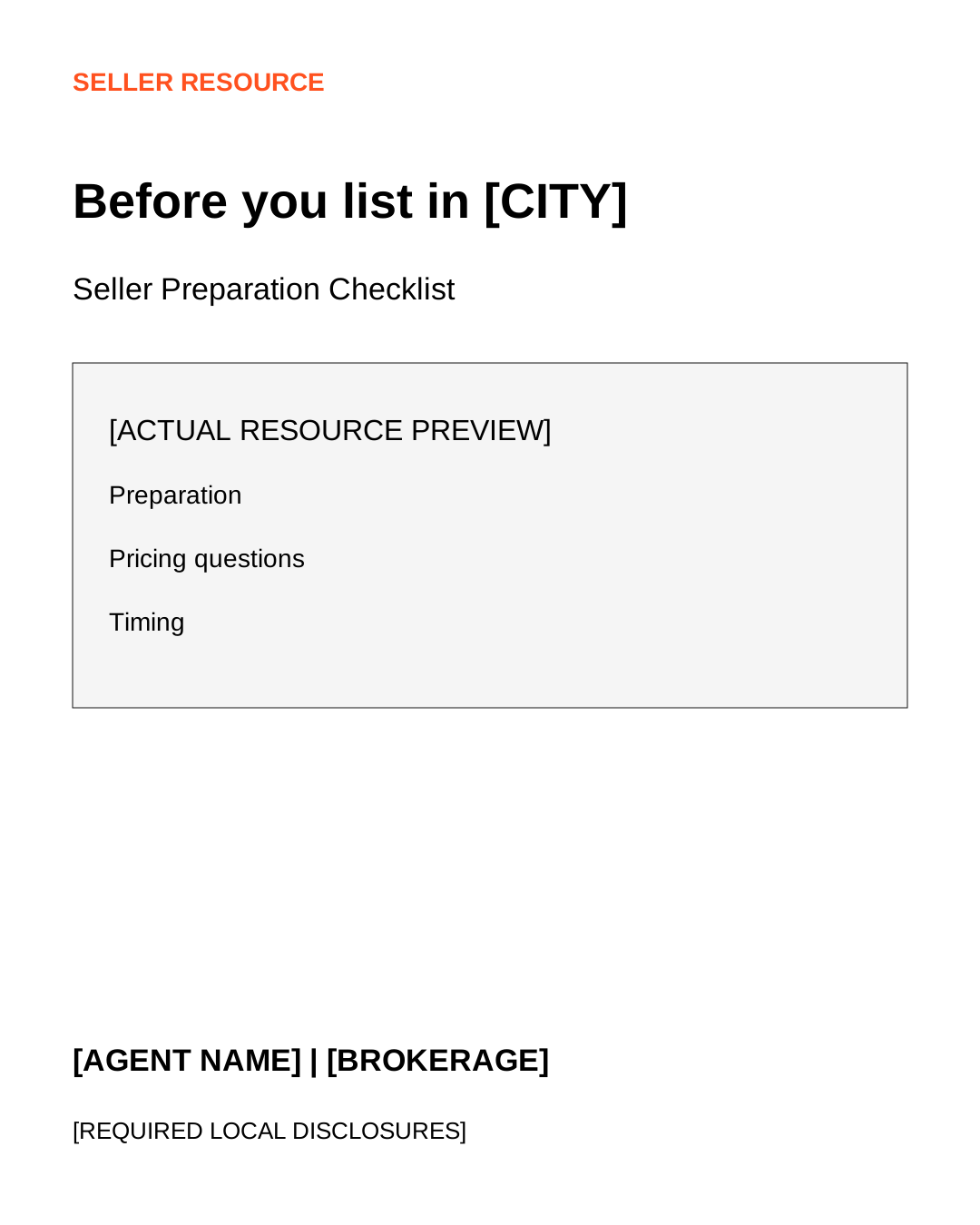
Template A Checklist cover
Canvas: 1080 × 1350 pixels as a design working size, not a platform requirement. White background. Black headline at x80 y240; orange label at x80 y100. Headline: Before you list in [CITY]. Below, a simple document preview with the actual checklist title and three readable sample items. Bottom: [AGENT NAME] | [BROKERAGE], with required disclosures added in a readable area. Text hierarchy: headline 54px, subheadline 34px, body 28px. Keep critical copy away from outer edges and check each actual placement preview. Export a PNG or JPEG that the current Ads Manager accepts.
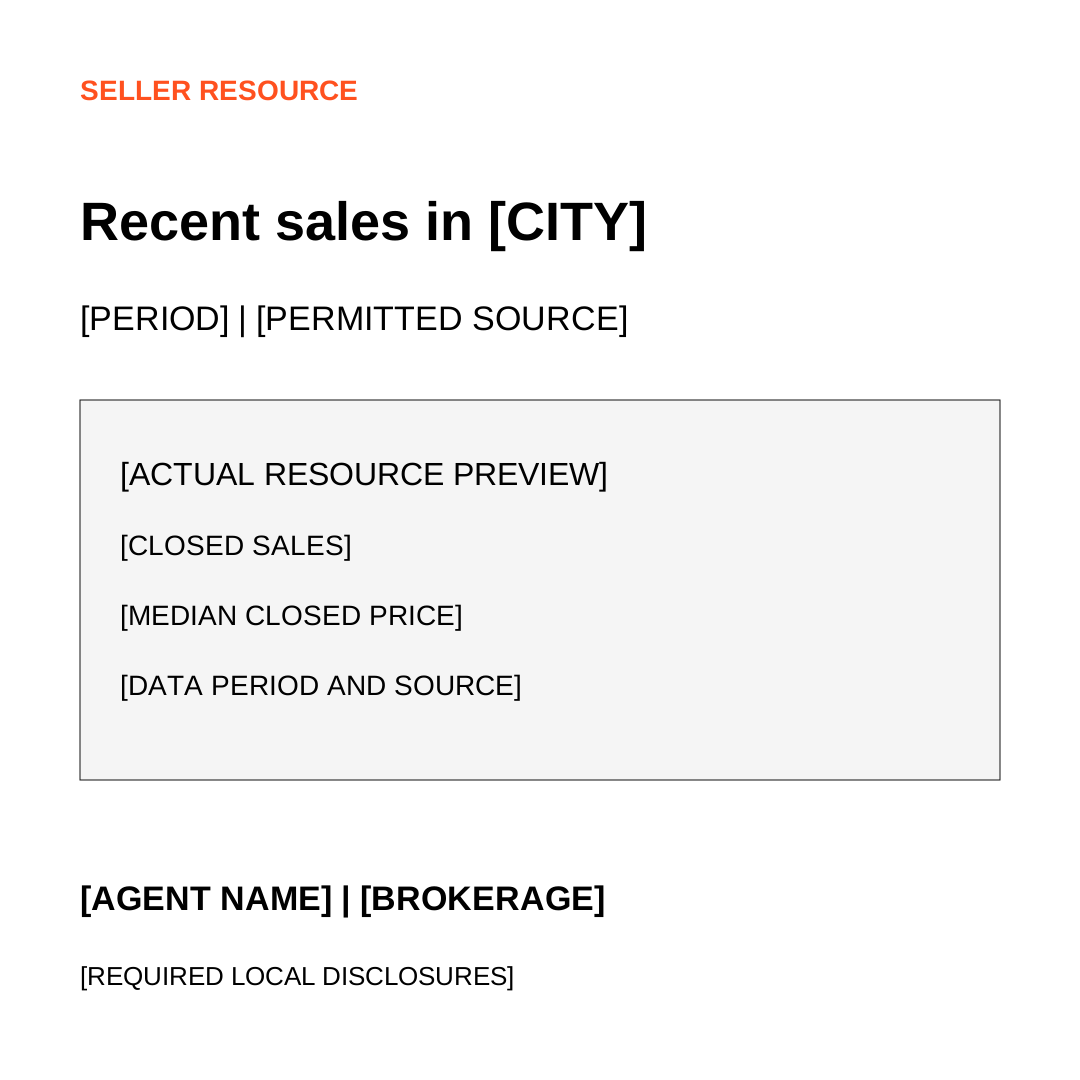
Template B Local report
Canvas: 1080 × 1080. White background; headline Recent sales in [CITY]. Center: three labeled data fields from the permitted report, with period and source. If data are missing, use a real report cover rather than made-up numbers. Footer: accurate agent and brokerage identity. Optional licensed property photo: use an image you have permission to advertise. Do not imply the property is your listing if it is not. A map can orient the reader but must not show discriminatory boundaries or imply precision beyond the ad's permitted delivery area.
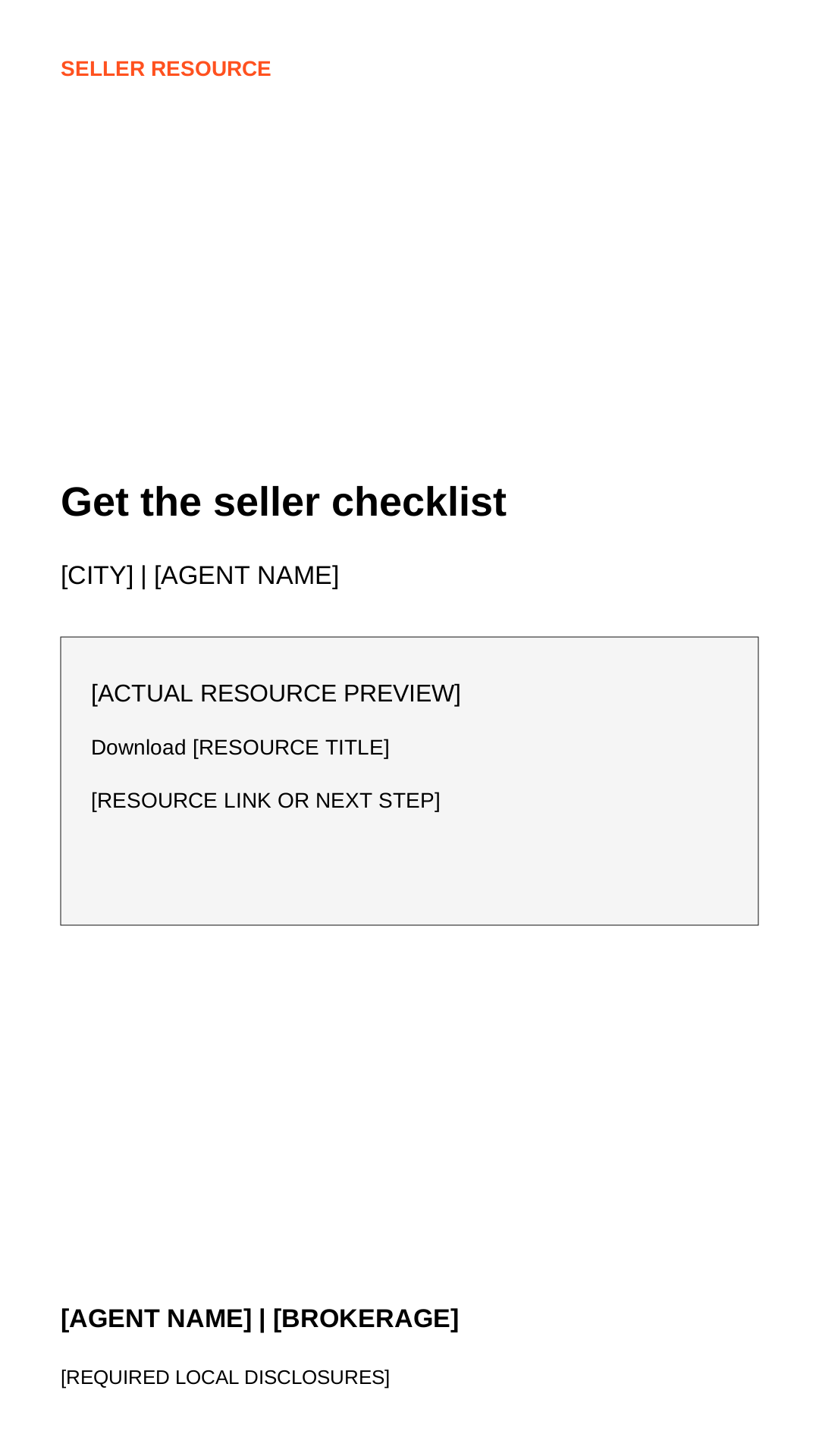
Template C Short video storyboard
Working canvas: 1080 × 1920. Use a phone-recorded agent video or screen recording of the real resource, with captions. 0–4 seconds: This checklist covers the decisions to make before listing in [CITY]. 4–12 seconds: Show the actual checklist. Point to timing, preparation, and pricing questions. 12–22 seconds: You can download it and work through it without booking a call. 22–30 seconds: If you want help applying it to your property, there is an optional conversation afterward. End card: Get the checklist. [AGENT NAME], [BROKERAGE]. Avoid promises you cannot prove and property imagery without permission.
Concepts you can substitute
- Real resource preview: screenshot of a useful page, not fake dashboards.
- Agent explains one pricing question: show the report's uncertainty and next decision.
- Licensed local imagery: relevant property or neighborhood context with accurate caption.
- Map or area label: a geographic orientation aid, not a workaround for Housing restrictions.
- Seller preparation desk view: the actual checklist and a written plan, without personal documents.
Creative testing matrix
| Test ID | Offer | Copy | Creative variable | Keep fixed | Decision metric |
|---|---|---|---|---|---|
| C01 | Same checklist | Same primary text | Document preview vs agent video | Area, budget, page, nurture | Cohort qualified opportunity cost and held outcome when mature |
| C02 | Same checklist | New opening sentence | Keep winner image fixed | Remaining copy and funnel | Qualified-to-book rate after maturity |
| C03 | Same report | Same primary text | Report cover vs licensed local photo | Everything else | Cost per qualified seller opportunity |
Do not run all three at launch. Pick one comparison you can fund and measure. Track creative ID, version date, rights, and test result in Seller Ad Testing Tracker.
Placement review
Preview the ad in every enabled placement. Check crop, text size, safe area, CTA visibility, and identity disclosures. The working dimensions above are template choices; use current official format guidance from your account before export. Remove placements or create a fit-for-placement asset only when a preview shows a genuine problem and policy permits the selection.
You’re done when
Two edited assets render correctly in the chosen placements and show the real resource.
Support reference R06